The Unix Seismic Processing [USP] system of programs was initiated to serve a development and algorithmic testing purpose. In the years since it's inception [1984-5] the system has grown into a unique collection of over 450 routines capable of handling a wide variety of data types including 2 and 3D seismic, VSP, potential field, full waveform borehole, multi-component, cross-well and synthetic. Any dataset that can be expressed as a series of numbers can be processed. The reason for this explosive growth is quite simple, the USP toolkit approach to processing offers a fast and efficient method to construct, test and put into production new scientific algorithms.
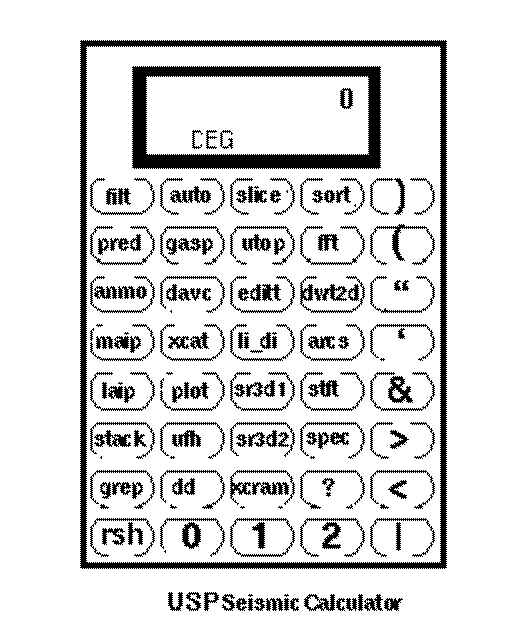
USP was originally envisioned as a seismic calculator where instead of numbers on the keypad there existed individual processing routines. These routines could be put together in a number of different ways to build the desired output. The machinery that allowed this flexibility was the UNIX operating system where each executable element was built with connections that could be mixed and matched by the end user.
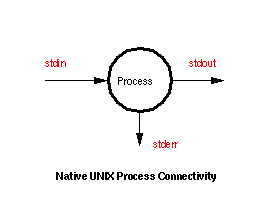
In UNIX, and hence in USP, each executable binary reads data from stdin, writes data to stdout and communicates with the user across stderr. These 3 connections, stdin, stdout and stderr are the basic UNIX connections that allow USP to function. They also allow USP routines to be combined with native UNIX routines to greatly increase the overall system functionality.
For example, consider scanning an input dataset to extract minimum and maximum amplitude information:
scan -N datain -S | grep Max
In this example the following schematic would apply:
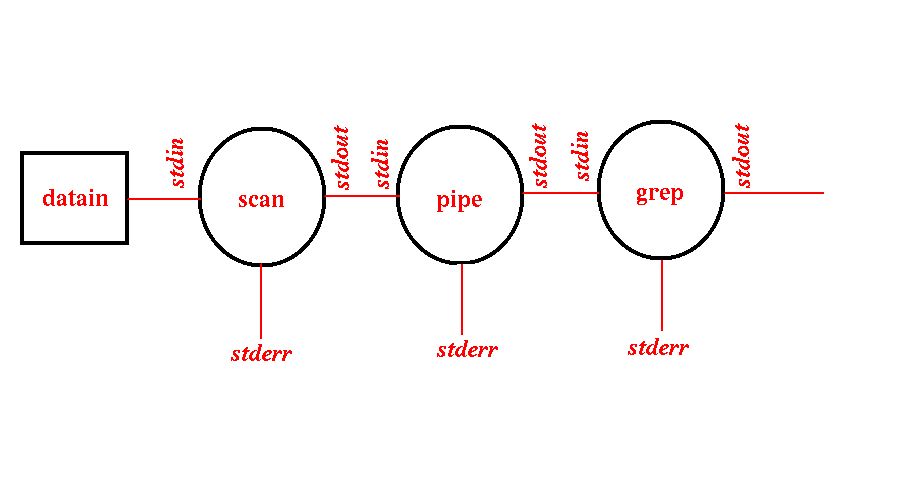
Here stdin from scan would be redirected to the datain disk file. The UNIX pipe process connects stdout from scan with the stdin of grep. The stdout of grep and all the stderr processes are connected to the terminal display by default. Both pipe and grep are native UNIX processes whereas scan is a USP routine.
Redirects
The concept of redirecting any of the above connections is quite useful. The redirection syntax is a function of the UNIX shell that you are using. The most common shells are csh (C Shell) and sh (Bourne Shell). Table One shows the redirection syntax for stdin, stdout and stderr.
Foreground / Background Execution
When submitting a UNIX job on the command line you may either execute the process in the foreground by simply hitting return or you may put the job in the background by adding an ampersand (& ) to the command string before hitting return. If a job is executing in the foreground and you wish to temporarily halt execution without killing the process you may do so by hitting control z . At this point you may either put the job into background by hitting bg or resume execution in the foreground by hitting fg . When submitting a job to background that you may not want to wait around for it is a good idea to preface the command with a nohup . This will ensure that the job will not be stopped by any system hang-ups. For instance you may log off and the job will still go to completion.
If you want to know what the job status is in any given window simply enter jobs and hit return. All jobs running in that window will be listed along with their status, running, stopped etc.
Timed Execution
The UNIX at command allows you to submit a job for execution at a later time. When using this command it is best to put your command line into a shell script which you will need to make executable [chmod +x]. When this job fires up it will do so from your root directory so that if you want to access data in another directory make sure you either use fully qualified path names for your input and output or issue a cd to the appropriate processing directory as the first command in your script.
Device Drivers
UNIX is rich with device drivers to handle data stream interface between the CPU and many other devices. The most common devices are:
/dev/null - the system bit bucket
/dev/audio - the system sound card
/dev/rmt/0 - an attached SCSI tape device [rewind upon completion]
/dev/rmt/0n - an attached SCSI tape device [no rewind upon completion]
/dev/rmt/1 - an attached 9-track tape device [rewind]
/dev/rmt/1n - an attached 9-track tape device [no rewind]
/dev/rmt/2 - an attached 1/4" cartridge
To see a full listing of all drivers available on your machine simply look in the /dev directory. Note that all SCSI tape drives are assigned a unique numeric ID when the system is booted in reconfiguration mode (boot -r). There is no significance between these integers and the type of drive. See man mt for a more complete discussion. There are many ways to use these drivers. The easiest is to use the UNIX dd [device driver] command. For instance, to stream data to an attached SCSI tape device one would use the command:
Since dd handles only a single volume dataset in USP we have many other ways of using these devices. Some of the most common multi-volume capable interfaces are:
cram - interactive multi-volume driver
xcram - interactive X-window device driver
xcram10 - interactive X-window stacker device driver
bridge - batch multi-volume, multi-format device driver
Named Pipes
The UNIX mknod or alternately mkfifo command may be used to create a special first in first out [FIFO] device called a named pipe. A named pipe is nothing other than a special file that can be used to buffer data on the fly. Data can be piped into and out of a named pipe in a fashion analogous to a regular UNIX pipe. That is the data in the named pipe can only be looked at once. Once you have read the data from the named pipe that data is gone. You cannot go back and read it again. To create a named pipe use:
or
mkfifo mypipe
where mypipe can be any old name you want. Once the named pipe is created it can be used for as long as you want for as many purposes as you want. To remove a named pipe simply use the UNIX command rm:A UNIX listing of the file [ls -al] will show:
prw-rw-r-- 1 zpgg07 usp 0 Jul 11 09:37 mypipe|
notice the little p at the start and the pipe symbol [ | ] at the end. While a named pipe is in operation you may see it's size fluctuate as data is flowing through:
prw-rw-r-- 1 zpgg07 usp 4096 Jul 11 09:40 mypipe|
which is really the only way to monitor the pipe. If you try to look at the data in the named pipe you will remove the data that you have viewed from the datastream thereby affecting your downstream process.
Finally, before you can put data into a named pipe you must first open the end for data to flow. If you create a named pipe and try to push data into it without first opening the output end you will hang your process. An example of proper named pipe usage would look like:
Notice that the named pipe is created and the end of the pipe opened with the xcat command put in background. The scan output is now redirected to the named pipe [using the ! since the file is already in existance] resulting in the scan output appearing in the xcat window which has been sitting there waiting. There is no reason why one could not separate these commands by any time interval desired. I could make the named pipe on Tuesday, create the xcat in background on Thursday and run scan on Sunday.