Introduction
XSB is a graphical flow builder that is simpler and more focussed than XIKP. It is simpler in the sense that only linear flows are permitted, i.e. no branching or multithreading, and that flows only run locally. It allows users who hate typing in long command lines to run complicated programs graphically. It is more focussed in that it does permit looping, e.g. cycling through a number of prediction distances from a starting value to an ending value with some increment. It also has the capability to build flows with if-then-else flow control.
The main menu panel
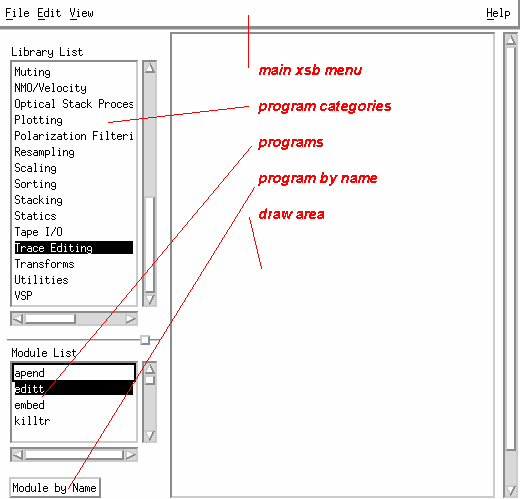
is quite similar to XIKP in that is has a top menu bar - File, Edit, View; a scrollable selector box of USP program categories and a scrollable listing of the routines within each category, and a means of getting a program whose name is known.
Definitions
(1) a process is an executable program that does something to a data stream or creates a data stream, e.g. filt, grep.
(2) the draw area is the graphical zone on the XSB main panel in which flows are built.
(3) accelerator keys are a combination of one or more keystrokes designed to replace a mouse menu selection. All alphabetic key strokes are lower case even though in the text they are refered to as upper case - this is to avoid confusing an "l", say, with a "1". An example of a key combo is "ctrl+R" which translated means "hold the control key down and type the "r" key.
(4) flow control refers to conditions under which parts or all of the flow get executed.
XSB Main Menu Selection Boxes
Use of the selector boxes is as follows: scroll the Library List until you find the category you want and select by double left mouse click. Then scroll the Module List until you locate the appropriate module and double left mouse click. At this point a box representing the process chosen will appear in the draw area with a bullet beside it indicating that this is the current selected portion of the flow.
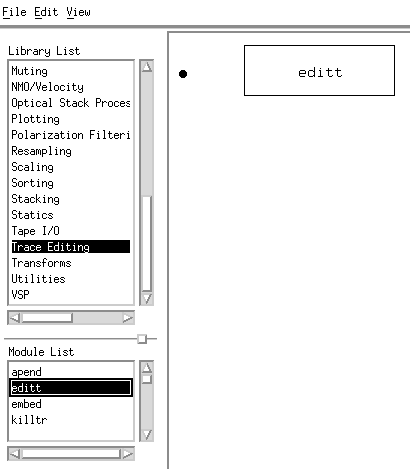
Left clicking in the interior of the box brings up the menu for that process.
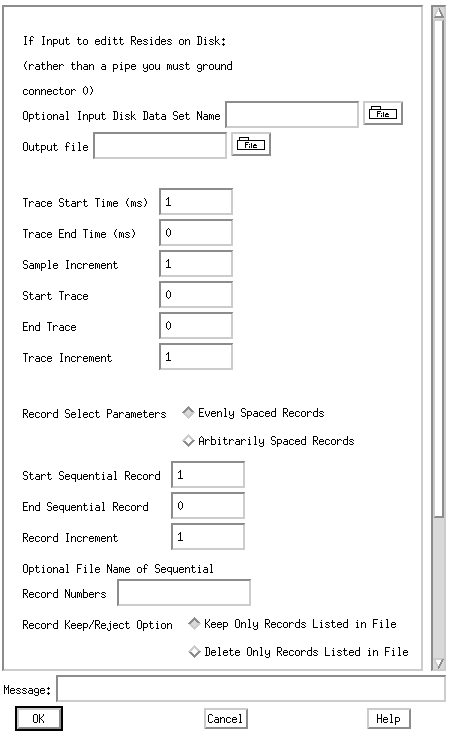
Side scrollbars allow access to long menu panels. The fields are either text entries for file names, numerical (decimal or integer) values such as times or frequencies, and button selections that invoke one or more choices. Entries can be made in typical motif fashion. Either single clicking to the right of a defaut value and backspacing over it or double clicking in the field to instantly replace a value. If an incorrect type of value is placed in an area, e.g. a decimal where an integer is called for a message will be displayed at the bottom in the "Message:" window after "OK" os clicked.
How to Build a Simple Flow
As the user makes selection of programs the draw area displays the boxes representing the processes in the order they were selected. The bullet marks the current insertion point of the flow. By left clicking to the left of the process boxes the insertion point can be moved allowing processes to be inserted in the flow when another module select is made.

Once the individual programs have been selected and appear in the draw area the middle mouse button is clicked once between the programs to be connected:
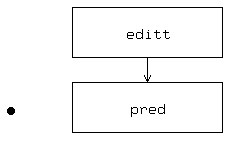
Left clicking the interior of the process boxes brings up the menu panel for each. For the example shown the editt menu will have only the input data set name to be filled out since after the process connection was made XSB automatically set the editt output file to be a pipe (stdout) to pred. Similarly the pred menu panel will have the output data set name to fill out, the input data set name being set to a pipe (stdin). Of course there are other menu items to be filled out.
At this point the flow can either be run by selecting the Run entry from the File popup or can be stored away using the Save options.
Saving the current flow results in two files being generated in the current working directory:
-
(1) the file name you saved the flow as. This file is a specially formatted file containing draw information so that flows can be stored away and read back into XSB for further modification.
(2) that filename with ".script" appended to it. This file is an actual Bourne shell executable script containing all the command line arguments and their defaults. If you have no idea how to write one of these scripts then after building a few of these files you can quickly become an expert.
XSB Main Menu Popups
File
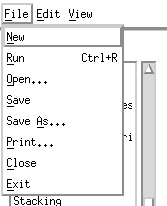
New: clears the graphical area of all user built flows currently drawn.
Run: once a flow has been competely connected a left click on this menu entry or ctrl-R starts it running in the graphical window (you can also save this script and run it outside XSB - see Save below). At this point an xcat window appears with messages. Normally a flow that runs successfully will result in a "DONE" message.
Open: open a previously stored flow file by left clicking on this or hitting the "O" key causes a file selector box to appear (see figure 5). The file selector box will appear with what XSB thinks is the current working directory. This is a standard file selector box so either choose an existing file or fill the "Selection" window with a new file name. Choose the name the flow was saved as not the filename with the appended .script (see Save below).
Save: write the current flow out to disk in the current working directory. Two files will be created, one is a specially formated XSB file for use in reading flows back into a later XSB session for further modification and (2) the other is the actual executable script which will be the saved file name with .a .script appended to it. The standard file selector box that appears is shown in figure 5. These scipts are in Bourne shell dialect so they cannot be imported into a C-shell.
Save As: same as above except that a file box appears allowing the user to save the flow under a new or different name and in a specified directory.Print: currently does nothing
Close: currently does nothing
Exit: exits from XSB
Edit
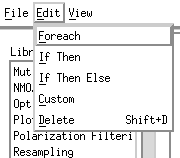
Foreach: this is the looping control.
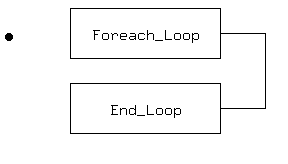
Now the user chooses programs to make up the flow inside the loop. In this example we will continue to use an editt step followed by a deconvolution program. We will also add an apend to collect the data from each cycle of the loop.
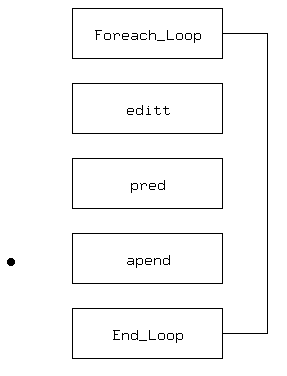
Once the individual processes of the flow have been chosen we use the middle mouse button to connect them (single click between the processes to be connected).
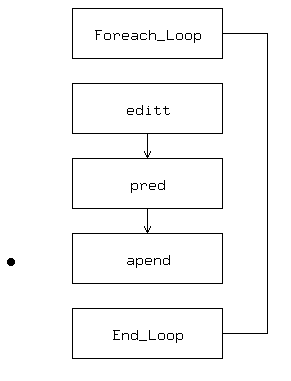
Now the menu panels are filled out. The editt menu selects the record(s) for the decon test; the apend menu can basically be defaulted. The pred menu is the critical one here. Suppose we want to do a decon test of prediction distance going from 4ms to 100ms in steps of 20ms. We have to enter the command line key for the prediction distance [in this case a p] preceeded by a "$"
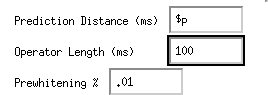
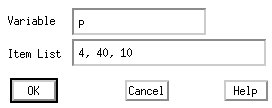
The command line keys are gotten from the manual page for that particular program. In general what goes in the menu entry that you're looping over is ${variable} where variable is the command line key with the dash stripped off, e.g. -key -> $key. The last step is to left click inside the Foreach box and fill out the variable and its values. There are two methods of inputting values. The first is to give a starting value, an ending value, and an increment for the variable shown above (in our example it is the command line key for the prediction distance -p with the dash stripped off and the one referred to by $p on the pred menu entry for that entry.
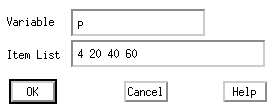
The second method is to give a list of values separated by white space
The flow can be run in the XSB graphical interface by selecting Run or typing ctrl-R or it can be saved and run later as a script job.
If Then & If Then Else
The conditionals can be useful inside loops to make decisions based on the parameter values.
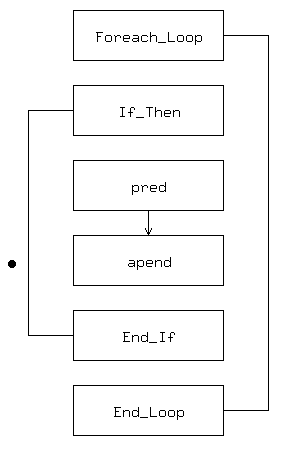
The loop will run through the range of values or list of values described above. The job of the If Then (and the If Then Else) is to do something different when the loop variable attains some value(s). These conditional values are entered in the If Then menu:
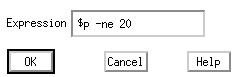
Just like the pred menu when we wanted to pass the p variable for the prediction distance using $p, here we enter some expression the left side of which is ${variable}. The right side is a value (20 in this example) and the middle portion of the expression is a conditional operation (in this example -ne means "not equal to". Valid numerical conditionals are
If the variable is a string then the following operators are used.
The If Then Else runs one section of the flow if the expression in the If Then box is true and runs the Else section of the flow if the expression is false.
The examples show here are trivial but this type of conditional processing can potentially be quite powerful.
Delete: Selecting Delete (or typing shift-D) causes the box in the flow marked by the bullet to be erased
XSB on pipelines
XSB can be run using either a single program as a command line argument:
XSB pred
or a pipeline:
XSB "editt | pred | filt"
Note that the pipeline must be enclosed in double quotes. XSB will then come up with the process boxes already in place and the connections made. The menu items can then be filled in and the flow run of saved to a script.
Multiple flows
Several separate (unconnected) flows may be built. If the flow is run graphically it behaves just like in a script: the top flow will run first and upon completion the bottom flow is executed.

