
 Return to Getting Started.
The USP Command Line
Getting started in USP is as easy as typing. For the purposes of this tutorial let us assume that you know absolutely nothing about either the makeup of the USP toolkit or how to use it. Let us assume only a basic understanding of UNIX. If terms like stdin, stdout or stderr are strange to you then perhaps you should start with the Unix tutorial.
USP routines are executable from the UNIX command line prompt. By default USP routines read your data from stdin and write the processed output data to stdout. Any interaction with you the user happens over stderr. That said, the syntax of a typical USP command looks like:
prgm -N datain -O dataout
where prgm is the program name and datain and dataout are disk files containing your input and output datasets in USP binary format. USP routines all contain a help subroutine that will report to stderr the command line syntax for that routine as well as a brief description of each command line parameter. Try entering the command:
prgm -'?'
Now watch what happens if you enter:
prgm -h
or
prgm -help
Most USP routines will report command line help if one of -'?', -h or -help appear anywhere on the command line. For instance, let us say that you have most of a command line typed but cannot remember the syntax for a pertinent option. You could simply add a -'?' to the end of your command line:
prgm -N datain -O dataout -rs 100 - re 110 -'?'
When you associate a value with a command line parameter in USP you may attach it directly to the command line key or you may leave white space between the command line key and your value. Either method is generally acceptable. For instance the following two command lines are functionally equivalent.
prgm -N datain -O dataout -rs 100 - re 110
prgm -Ndatain -Odataout -rs100 - re110
USP Manual Pages
All UNIX routines have a manual page accessible with the UNIX man command:
which you may refer to if you required more detailed help than is available in the command line help subroutine. Of course to be able to use the UNIX man command you must have the USP man page directory in your MANPATH. We offer the USP routine uman so that you do not need to change your MANPATH in order to see our man pages. Try entering the command:
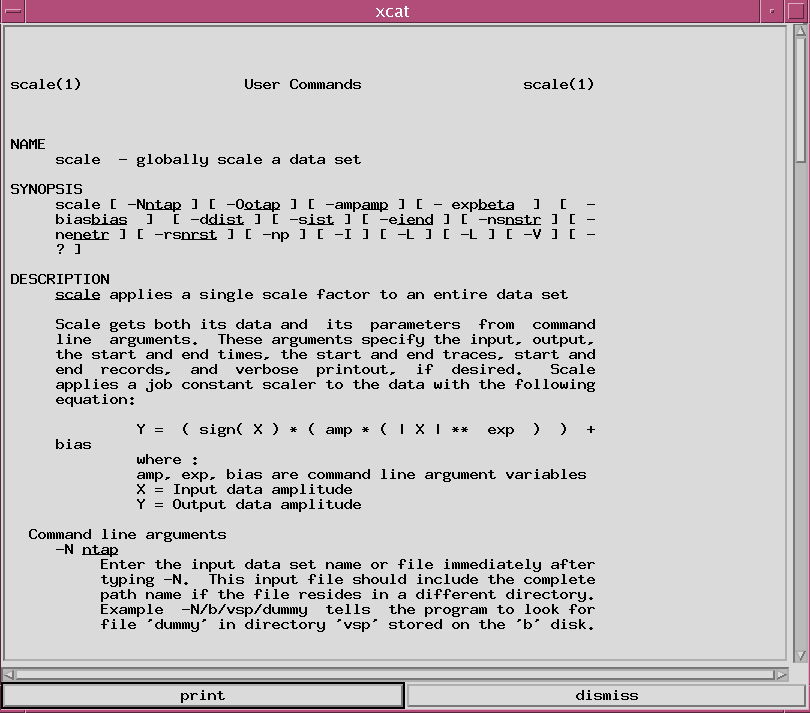
You should get the same response as seen by clicking on the above link. If you have read the manual page and are still stumped by the program you may call the author. Their identity is usually listed at the end of the manual page. Some of the phone numbers listed there are long since gone but many of the authors are still around and will happily hold your hand through execution of their routines. They will even go so far as to debug or add options if you so required. This can usually be done in minutes with a new binary loaded online for your enjoyment.
Alphabetic or functionality based listings of USP routines are available on this website.
You can perform a keyword search on all USP man pages using:
uman -k keyword
Try searching for a routine to perform scaling:
uman -k scaling
You should see the response:
tts2b01a 294: uman -k gasp
gasp gasp (1) - apply general amplitude scaling to trace data
gasp gasp (1) - apply general amplitude scaling to trace data
tts2b01a 295: uman -k scaling
gasp gasp (1) - apply general amplitude scaling to trace data
ravn ravn (1) - apply spatially and temporally variant amplitude scaling.
ravn3dr ravn3dr (1) - apply spatially and temporally variant amplitude scaling.
scspec scspec (1) - Scaling routine for use with spectral decomposition (spec).
ttothen ttothen (1) - apply t-to-the-n gain or exponential gain curve or V**2 \- t scaling
udrs udrs (1) - user defined range scaling
gasp gasp (1) - apply general amplitude scaling to trace data
gscl gscl (1) - Generalized Scaling Program
ravn ravn (1) - apply spatially and temporally variant amplitude scaling.
ravn3dr ravn3dr (1) - apply spatially and temporally variant amplitude scaling.
udrs udrs (1) - user defined range scaling
Now if you look at the scaling category of the functionality listing you will see than many more routines are listed there. The keyword search is a fast method to get at similar content from the command line. If you do not have access to the intranet you may get functionality browsing from the command using:
xuspman
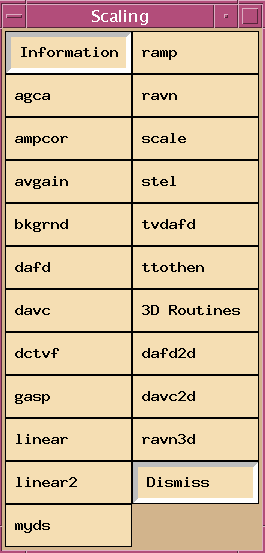
which is an X application with content equivalent to the website entry above. If you click on the scaling category you will see an X button panel pop up showing the same list of routines. Clicking on any routine will launch the man page into an xcat scrollable window to allow you to browse that man page.
USP and Shell Scripts
Anything that you can run from the command line can be included in a shell script for execution using the name of the script on the command line instead. Here is a C-Shell example:
and here is a Borne Shell example:
Let us say that we have either of these in the file prgm_job . To run the scripts you must first make it executable:
chmod +x prgm_job
./prgm_job
to capture all stderr output from a script and launch it to continue running even if you should logoff the system enter the command:
nohup ./prgm_job >& prgm_job_messages &
where nohup signifies No Hangup so that short of your machine crashing [or the machine that you are running the job on] it will keep running through almost all system hangup occurances. The redirect of stderr [ >& ] to the messages file allows you to capture all messages from the job so that you have a record of what occured while you weren't there.
To read from stdin and write to stdout from within script simply leave off the initial -N and the final -O. For instance the script :
may be run from the command line as:
prgm_job < datain > dataout
or be embedded in another job as in:
prgm -N datain |\
prgm_job |\
prgm -O dataout
We have countless examples of scripts for various processing tasks in our project archives listed under the ToolKit entry of this website.